QR Master
Scan QR codes and barcodes, generate custom codes for links or WiFi, and manage everything locally.
Open utility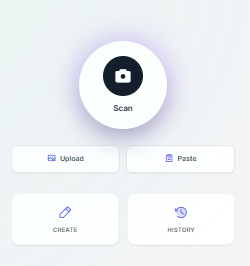
What it does
Use your camera, pasted images, or uploads to scan QR codes and common barcodes, then generate your own codes for WiFi, links, or contacts. Keep a local history with import and export so scans stay portable without cloud sync.
When to use it (and when not to)
Use it when:
- You need to scan asset tags or barcodes on the fly without installing an app.
- You want to generate WiFi or link QR codes for quick sharing.
- You need a lightweight, offline way to log scans and export them as JSON.
Avoid it when:
- You need enterprise-grade inventory features or cloud syncing.
- Lighting or camera quality is too poor for reliable barcode reads.
Inputs and outputs
Inputs
| Input | Description |
|---|---|
| Camera feed or uploaded image | Live scan or import an image for decoding. |
| Manual payload | Text, URLs, WiFi credentials, or contact details to encode. |
| History import | Load prior scans from JSON if you want continuity across sessions. |
Outputs
| Output | Format | Notes |
|---|---|---|
| Decoded scan results | Text | Contents of scanned QR or barcode values. |
| Generated codes | PNG | Downloadable QR or barcode images for sharing. |
| Scan history | JSON | Export of past scans saved locally. |
How to use
- Allow camera access or drop an image to scan.
- Review the decoded data and optionally save it to history.
- Enter a link, WiFi login, or text to generate a new code.
- Download the PNG or keep it in history.
- Export history as JSON when you need a backup.
Example dataset: Scan an equipment tag barcode to capture the serial, then generate a WiFi QR for SSID 'Plant-Guest' with its password and export history.
- Expected output: Returns the scanned serial text, a downloadable WiFi QR PNG, and a JSON history entry you can save.
Accuracy and verification
- Scanning quality depends on your camera focus and lighting.
- All scans stay local; export history if you need to move devices.
- Generated codes follow common QR/barcode specs; verify with a quick test scan before deploying.
- Clearing history removes local data; keep exports if you need an archive.
FAQ
- Which formats are supported? QR plus common barcodes; test a sample if you rely on a specific symbology.
- Does it work offline? Yes. Scanning and generation run in the browser.
- Where is history stored? In your browser memory until you export or clear it.
- Can I scan from images instead of the camera? Yes. Paste or upload an image and the decoder will read it.
- Can I export scans? Yes. Export history as JSON for backup or sharing.
Related tools
Changelog
- Initial documentation.
Feedback / bug report
- Open a GitHub issue
- Email or DM with the slug
qr-masterso we can reproduce the issue